Wednesday, May 30, 2012

[OpsMgr 2007R2][OpsMgr 2012] Upgrading from OpsMgr2007R2 to OpsMgr2012 - Process Flow Diagrams

Updated: April 1, 2012

Applies To: System Center 2012 - Operations Manager

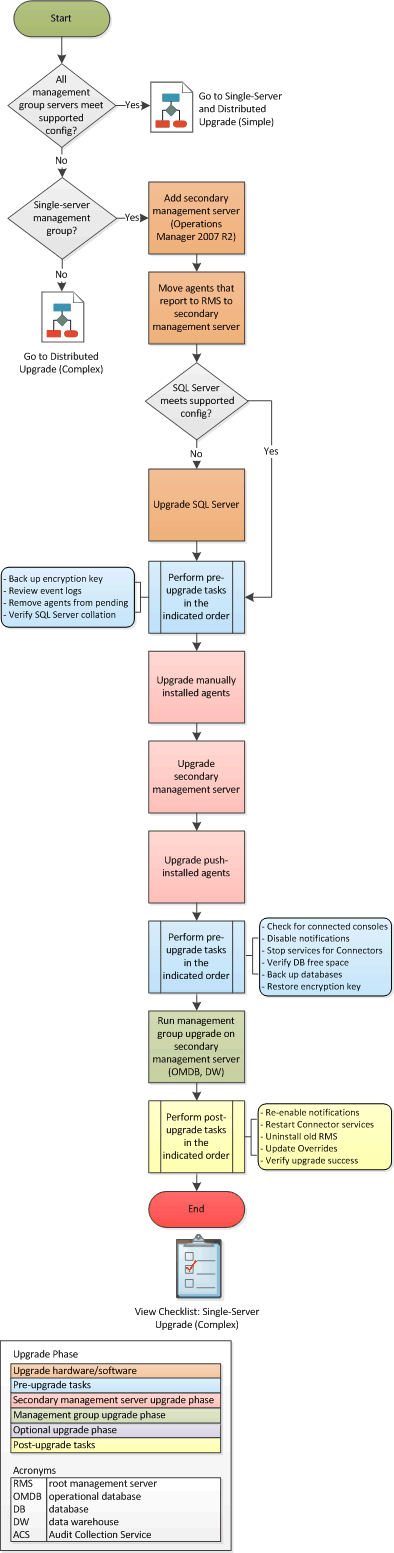
Before you upgrade to System Center 2012 – Operations Manager, you must first determine whether all servers in your System Center Operations Manager 2007 R2 management group meet the minimum supported configurations for System Center 2012 – Operations Manager. For more information, see Supported Configurations for System Center 2012 – Operations Manager. You can use a set of process flow diagrams to determine your upgrade path and visualize the process.


The following table lists the process flow diagrams available, along with a description of when each upgrade path should be used.


Condition
Process flow diagramChecklist
When you have a single-server or distributed management group that already meets the minimum supported configuration requirements for System Center 2012 – Operations Manager.Single-Server and Distributed Upgrade (Simple) Process Flow Diagram
Distributed Upgrade (Simple)
When your single-server management group does not yet meet the minimum supported configuration requirements for System Center 2012 – Operations Manager, and requires new hardware.Single-Server Upgrade (Complex) Process Flow DiagramChecklist: Single-Server Upgrade (Complex)
When your distributed management group has one or more servers that do not meet the minimum supported configuration requirements for System Center 2012 – Operations Manager, and might require new hardware.Distributed Upgrade (Complex) Process Flow Diagram
Checklist: Distributed Upgrade (Complex)

Single-Server and Distributed Upgrade (Simple) Process Flow Diagram


Single-Server Upgrade (Complex) Process Flow Diagram


Distributed Upgrade (Complex) Process Flow Diagram


Checklists

Single-Server Upgrade (Simple)
 
TaskReferences
 Import the Upgrade Helper management pack.Import the Upgrade Helper Management Pack
 Review the Operations Manager 2007 R2 event logs.Review the Operations Manager 2007 R2 Event Logs
 Remove agents from Pending Management.Remove Agents from Pending Management
 Check for any active connected consoles to the root management server.Check the Operations Manager 2007 R2 RMS for Active Connected Consoles
 Back up the RMS encryption key (SecureStorageBackup.exe).Back Up the RMS Encryption Key
 Disable all notification subscriptions.Disable Notification Subscriptions
 Stop services or disable any connectors that are installed.Stop Services for Connectors
 Verify that your operational database has enough free space.Verify that the Operational Database Has More than 50 Percent of Free Space
 Verify that you have a supported SQL Server collation on all databases and instances of databases.Verify the SQL Server Collation
 Back up the databases.Back up the Operations Manager Databases
 Upgrade the manually installed agents.Upgrading Manually Installed Agents
 Run the management group upgrade on the root management server.How to Upgrade an Operations Manager 2007 R2 Single-Server Management Group
 Upgrade the push-installed agents.Upgrading Push-Installed Agents
 Re-enable the notification subscriptions.Re-enable the Notification Subscriptions.
 Restart or re-enable the service for any connectors that are installed.Restart the Connector Services
 Update overrides.Update Overrides
 Verify the success of the upgrade.Verify upgrade success


Distributed Upgrade (Simple)
 
TaskReferences
 Import the Upgrade Helper management pack.Import the Upgrade Helper Management Pack
 Move agents that report to the RMS to a secondary management server.How to Move Agents to an Operations Manager 2007 R2 Secondary Management Server (Operations Manager Upgrade)
 Back up the encryption key.Back Up the Encryption Key
 Review the Operations Manager 2007 R2 event logs.Review the Operations Manager 2007 R2 Event Logs
 Remove agents from pending management.Remove Agents from Pending Management
 Verify that you have a supported SQL Server collation on all databases and instances of databases.Verify the SQL Collation
 Upgrade the manually installed agents.Upgrading Manually Installed Agents
 Upgrade the secondary management servers.How to Upgrade a Secondary Management Server from Operations Manager 2007 R2
 Upgrade gateways, if present.How to Upgrade a Gateway Server from Operations Manager 2007 R2
 Upgrade the push-installed agents.Upgrading Push-Installed Agents
 Check for any active, connected consoles to the root management server.Check the Operations Manager 2007 R2 RMS for Active, Connected Consoles
 Disable all notification subscriptions.Disable the Notification Subscriptions
 Stop services or disable any connectors that are installed.Stop the Services for Connectors
 Verify that your operational database has enough free space.Verify that the Operational Database Has More than 50 Percent of Free Space
 Back up the databases.Back Up the Operations Manager Databases
 Restore the encryption key on secondary management server.Restore the Encryption Key on the Secondary Management Server
 Run management group upgrade on the root management server.How to Upgrade a Management Group from an Operations Manager 2007 R2 RMS
 Upgrade or install the optional features, such as the web consoles and Reporting server.Upgrading or Installing Optional Features
 Re-enable notification subscriptions.Re-enable the Notification Subscriptions
 Restart or re-enable the service for any connectors that are installed.Restart the Connector Services
 Update overrides.Update Overrides
 Verify the success of the upgrade.Verify the Upgrade Success


Single-Server Upgrade (Complex)
 
TaskReferences
 Add a secondary management server and install System Center Operations Manager 2007 R2.How to Add an Operations Manager 2007 R2 Secondary Management Server (Operations Manager Upgrade)
 Move agents that report to the root management (RMS) server to the secondary management server.How to Move Agents to an Operations Manager 2007 R2 Secondary Management Server (Operations Manager Upgrade)
 If SQL Server does not meet the supported configuration requirements, upgrade SQL Server.Upgrading SQL Server (Operations Manager Upgrade)
 Back up the encryption key.Back Up the Encryption Key
 Review the Operations Manager 2007 R2 event logs.Review the Operations Manager 2007 R2 Event Logs
 Remove agents from Pending Management.Remove Agents from Pending Management
 Verify that you have a supported SQL Server collation on all databases and instances of databases.Verify the SQL Collation
 Upgrade the manually installed agents.Upgrading Manually Installed Agents
 Upgrade the secondary management server.How to Upgrade a Secondary Management Server from Operations Manager 2007 R2
 Upgrade the push-installed agents.Upgrading Push-Installed Agents
 Check for any active connected consoles to the root management server.Check the Operations Manager 2007 R2 RMS for Active Connected Consoles
 Disable all notification subscriptions.Disable the Notification Subscriptions
 Stop services or disable any connectors that are installed.Stop the Services for Connectors
 Verify that your operational database has enough free space.Verify that the Operational Database Has More than 50 Percent of Free Space
 Back up the databases.Back Up the Operations Manager Databases
 Restore the encryption key on secondary management server.Restore the Encryption Key on the Secondary Management Server
 Run management group upgrade on the secondary management server.How to Upgrade a Management Group from an Operations Manager 2007 R2 Secondary Management Server
 Re-enable the notification subscriptions.Re-enable the Notification Subscriptions.
 Restart or re-enable the service for any connectors that are installed.Restart the Connector Services
 Uninstall the old root management server.Uninstall the Old RMS
 Update overrides.Update Overrides
 Verify the success of the upgrade.Verify the Upgrade Success

Distributed Upgrade (Complex)

Import the Upgrade Helper Management Pack
 
TaskReferences
 
Import the Upgrade Helper Management Pack
Upgrade Helper Management Pack

Replacing Secondary Management Servers
 
TaskReferences
 If operating system is 32-bit, add a secondary management server.How to Add an Operations Manager 2007 R2 Secondary Management Server (Operations Manager Upgrade)
 Move the Operations Manager 2007 R2 agents to a secondary management server, and remove the old secondary management server.How to Move Agents to an Operations Manager 2007 R2 Secondary Management Server (Operations Manager Upgrade)
 Ensure that the secondary management server meets the supported configuration requirements for System Center 2012 – Operations Manager.Supported Configurations for System Center 2012 - Operations Manager
Replacing Gateways
 
TaskReferences
 If gateway server does not have a 64-bit operating system, build a new gateway server.How to Replace an Operations Manager 2007 R2 Gateway that Has an Unsupported Configuration (Operations Manager Upgrade)
 Remove the old gateway server.How to Remove an Operations Manager 2007 R2 Gateway (Operations Manager Upgrade)
 Ensure that the gateway server meets the supported configuration requirements for System Center 2012 – Operations Manager.Supported Configurations for System Center 2012 - Operations Manager
Secondary Management Server Upgrade
 
TaskReferences
 If RMS does not meet supported configuration requirements for System Center 2012 – Operations Manager, move agents that report to root management server to the secondary management server.How to Move Agents to an Operations Manager 2007 R2 Secondary Management Server (Operations Manager Upgrade)
 If Microsoft SQL Server does not meet the supported configuration requirements, upgrade SQL Server.Upgrading SQL Server (Operations Manager Upgrade)
 Back up the encryption key.Back Up the Encryption Key
 Review the Operations Manager 2007 R2 event logs.Review the Operations Manager 2007 R2 Event Logs
 Check if any gateway servers report to an unsupported RMS.Check for Gateway Servers Reporting to the RMS
 Remove agents from Pending Management.Remove Agents from Pending Management
 Verify that you have a supported SQL Server collation on all databases and instances of databases.Verify the SQL Server Collation
 Upgrade the manually installed agents.Upgrading Manually Installed Agents
 Upgrade the secondary management servers.How to Upgrade a Secondary Management Server from Operations Manager 2007 R2
 Upgrade gateway servers, if present.How to Upgrade a Gateway Server from Operations Manager 2007 R2
 Upgrade the push-installed agents.Upgrading Push-Installed Agents
Management Group Upgrade from RMS
 
TaskReferences
 Check for any active, connected consoles to the root management server.Check the Operations Manager 2007 R2 RMS for Active Connected Consoles
 Disable all notification subscriptions.Disable the Notification Subscriptions
 Stop services or disable any connectors that are installed.Stop the Services for Connectors
 Verify that your operational database has sufficient free space.Verify that the Operational Database has More than 50 Percent of Free Space
 Back up all databases.Back Up the Operations Manager Databases
 Run management group upgrade on the root management server.How to Upgrade a Management Group from an Operations Manager 2007 R2 RMS
 Upgrade optional features.Upgrading or Installing Optional Features
 Re-enable the notification subscriptions.Re-enable the Notification Subscriptions.
 Restart or re-enable the service for any connectors that are installed.Restart the Connector Services
 Update overrides.Update Overrides
 Verify the success of the upgrade.Verify the Upgrade Success

Management Group Upgrade from Secondary Management Server
 
TaskReferences
 Check for any active, connected consoles to the root management server.Check the Operations Manager 2007 R2 RMS for Active, Connected Consoles
 Disable all notification subscriptions.Disable the Notification Subscriptions
 Stop services or disable any connectors that are installed.Stop the Services for Connectors
 Verify that your operational database has sufficient free space.Verify that the Operational Database has More than 50 Percent of Free Space
 Back up all databases.Back Up the Operations Manager Databases
 Restore the encryption key.Restore the Encryption Key on the Secondary Management Server
 Run the management group upgrade on the secondary management server.How to Upgrade a Management Group from an Operations Manager 2007 R2 Secondary Management Server
 If required, install the optional features, such as the consoles and Reporting.Upgrading or Installing Optional Features
 Re-enable the notification subscriptions.Re-enable the Notification Subscriptions.
 Restart or re-enable the service for any connectors that are installed.Restart the Connector Services
 Uninstall the old root management server.Uninstall the Old RMS
 Update overrides.Update Overrides
 Verify the success of the upgrade.Verify the Upgrade Success


This posting is provided "AS IS" with no warranties.

[Orchestrator 2012] New System Center Orchestrator 2012 Integration Packs For BMC

The new BMC Integration Packs are dependent on the appropriate Web Services being enabled and configured on the target BMC product to allow the Integration Pack to function. Without the Web Services in place the Integration Pack will be unable to connect to the target BMC Product.
If you would like assistance in configuring the Integration Packs Kelverion offer a Integration Pack Implementation Service.

 Integration Packs for BMC Atrium CMDB, Enterprise Event Manager (BEM), BMC Remedy AR System and BMC Bladelogic available to download here.

Integration Pack for BMC Atrium CMDB
Supported Versions
  • BMC Atrium CMDB 7.6.04 is supported. Future compatibility is dependent on BMC Atrium Core Web Services.  Prior versions to 7.6.04 are not supported.
Activities
The Integration Pack supports the following activities for both CIs and relationships:
  • Create Instance
  • Delete Instance
  • Get Instance
  • Monitor Instance
  • Update Instance
  • Start Reconciliation Engine Job
Integration Pack for BMC Enterprise Event Manager (BEM)
Supported Versions
 Starting with BMC Enterprise Event Manager 7.4 with Impact Integration Web Server 7.4 (developed with 7.4.01).  Future compatibility is dependent on changes to Impact Integration Web Server.
 BEM Activities:
  • Create Event
  • Update Event
  • Set Event Status
  • Get Event
  • Monitor Events
Integration Pack for BMC Remedy AR System
Supported versions:
Starting with BMC Remdey AR System 7.5 and 7.6. (developed with Remedy 7.5). Future compatibility is dependent on Remedy Web Service. Version 7.1 or below is not supported.
Activities:
The Integration Pack supports the following activities:
  • Create Request
  • Update Request
  • Get Request
  • Monitor Request
Integration Pack for BMC BladeLogic
Supported versions: 
 Starting with BMC BladeLogic Server Automation 8.1
 BladeLogic Activities:
  •  Create BLPackage from Audit
  • Create Deploy Job (BLPackage Deploy Job or Software Deploy Job)
  • Run Job  (Audit Job, ACL Push Job, Batch Job, BLPackage Job, Compliance Job, Component Discover Job, File Deploy Job, Software Deploy Job, NSH Script Job, Snapshot Job, Virtual Infrastructure Discovery Job)
  • Export Audit Results
  • Run BLCLI Command
 This integration Pack is now available for both SC2012 Orchestrator and Opalis 6.3


Source : http://scug.be/blogs/christopher/archive/2012/03/27/bmc-products-integration-packs-for-orchestrator-2012.aspx

This posting is provided "AS IS" with no warranties.

Tuesday, May 29, 2012

[OpsMgr 2007R2] System Center Operations Manager 2007 R2 Connectors & Cumulative updates KB2274165

It's not really a new link - Microsoft has published this in 2009 but I had to retrieve this information for my own work and I would like to share it on my blog.

Direct link : >>>>> Here <<<<<

The System Center Operations Manager 2007 R2 Connectors provide System Center Operations Manager 2007 R2 alert forwarding to remote systems, such as an Enterprise Management System (EMS) or service desk system.


Version:1.0                    Date published:7/24/2009

File nameSize
SCInterop_R2_RTM.exe188.8 MBDownload


Overview

Operations Manager 2007 R2 Connectors provide Operations Manager 2007 R2 alert forwarding to remote systems, such as an Enterprise Management System (EMS) or a service desk system. After Operations Manager 2007 R2 forwards an alert to a remote system, that alert data is synchronized throughout the lifetime of the alert. The result of that data synchronization is a robust and seamless systems management environment. Such an environment enables cross-organization support processes to take advantage of the resources and strengths of formerly independent support groups. The ultimate effect is improved enterprise systems health through improved organizational communication.

Sharing data between Operations Manager 2007 R2 and remote systems enables enterprise correlation of events from Windows-based systems, hardware, network, and UNIX and Linux systems. Correlating these events allows IT staff to determine the causes of issues and reduce the time to resolution of IT outages.

Synchronization of data between Operations Manager 2007 R2 and remote systems also enables operational groups to use familiar management interfaces. Users update an alert by using their management tool, and the data is updated in tools that are used by other operational groups.

This release of the Operations Manager 2007 R2 Connectors includes the following Connectors:
  • Microsoft System Center Operations Manager 2007 R2 Connector for IBM Tivoli Enterprise Console
  • Microsoft System Center Operations Manager 2007 R2 Connector for HP OpenView Operations for Unix
  • Microsoft System Center Operations Manager 2007 R2 Connector for HP OpenView Operations for Windows
  • Microsoft System Center Operations Manager 2007 R2 Connector for BMC Remedy ARS
  • Microsoft System Center Operations Manager 2007 R2 Universal Connector

Feature Summary:
  • Operations Manager 2007 R2 alerts are forwarded to a remote system.
  • Operations Manager 2007 R2 alerts are synchronized with remote systems throughout the lifetime of the alert.
  • Failover to backup remote system servers is supported.
  • The High Availability feature supports failover to secondary Connectors that are installed on other servers in the Operations Manager 2007 R2 domain.
  • Multiple Operations Manager 2007 R2 management groups that are communicating with a single remote system are supported.
  • Multiple different remote systems can be supported with multiple Connectors that are installed in one Operations Manager 2007 R2 management group.
  • Delivery of Operations Manager 2007 R2 alerts is guaranteed by requiring acknowledgement from remote systems.
  • The Connector user interface that is integrated into the Operations Manager 2007 R2 console provides the following functionality:
    • Connector health status can be monitored in the Operations Manager 2007 R2 console by using Connector management packs.
    • Connector configuration is limited to Operations Manager 2007 R2 administrators.
    • Operations Manager 2007 R2 servers, remote system servers, and High Availability Connectors can be configured for communications.
    • Alerts forwarding is configured by selecting alert fields, mapping severity, and mapping resolution states to equivalents in a remote system.
    • Selected alerts can be forwarded manually from the Operations Manager 2007 R2 console.
    • The Operations Manager 2007 R2 Product Connector Subscription wizard allows automatic forwarding of Operations Manager 2007 R2 alerts.
    • The Product Connector Subscription wizard allows separate alert forwarding for multiple Connectors.

System Center Operations Manager 2007 R2 Connectors Cumulative Update 2 (KB2274165)

 Direct link >>>>> Here <<<<<

The Systems Center Operations Manager 2007 R2 Connectors Cumulative Update 2 is the second update for the System Center Operations Manager 2007 R2 Connectors.


Version:1.0Date published:7/30/2010

 
File nameSize
OM2007R2Connectors-KB2274165.exe62.5 MBDownload
ReadMe.rtf152 KBDownload


Overview

The System Center Operations Manager 2007 R2 Connectors Cumulative Update 2 includes the System Center Operations Manager 2007 R2 Connectors Update (KB975774) and additional bug fixes.

Feature Summary:
This updated release includes all features that were in the previous update release (KB975774) and additional fixes in this release:
  • Fixes for the following issues (in previous release KB975774):
    • Potential high CPU usage of HP OVO Event Consumer for Windows (scinteropd.exe)
      • The Scinteropd.exe process of HP OVO Event Consumer for Windows sometimes increases CPU usage to a very high level. This problem occurs only in System Center Operations Manager 2007 R2 Connectors for HP Operations Manager on Windows. It occurs in all language versions of the connectors.
    • Synchronization issue in HP OVO Connector
      • HP Operations Manager and System Center Operations Manager 2007 R2 may be in an asynchronous state when alerts are forwarded that have already been resolved. Open events are still present in HP Operations Manager even though the corresponding alerts in System Center Operations Manager 2007 R2 are already resolved.
    • Remedy connectors do not populate the Computer Name and Domain fields
      • When an alert is forwarded from System Center Operations Manager 2007 R2 to Remedy, the Computer Name field and the Domain field are left blank in the Remedy notes field. This issue occurs in the release version of System Center Operations Manager 2007 R2 Connector for Remedy 6.3 and Remedy 7.1.
    • Unresponsiveness of the Interop provider when an Enterprise Management Service (EMS) API call returns an error
      • The Interop provider may stop responding and not recover when an API calls to the EMS and returns an error.

        Note Usually, the API calls to Remedy.

        This issue typically occurs when large localized text strings in the Custom Field Alert properties are forwarded to Remedy. However, it can also occur with other properties.
  • Additional issues addressed in this release:
    • Added Support for Remedy 7.5
      • This update enables support for Remedy 7.5 with the Operations Manager 2007 R2 Connector for Remedy.
    • Added Support for HP Operations Manager for UNIX v9
      • This update enables support for HP Operations Manager for UNIX v9 with the Operations Manager 2007 R2 Connector for HP Operations Manager. The Connector supports HP Operations Manager for UNIX v9 on the following platforms:
        • HPUX 11i v3 Itanium
        • Solaris 10 SPARC
        • RedHat Enterprise Linux 5.2 x64
    • Incorrect dates are passed to the remote system by the connector
      • The Connector performs an incorrect date conversion and forwards the incorrect date to the remote system.
    • Product Knowledge is not forwarded when the locale is Canadian English
      • If the locale on the Operations Manager server is set to Canadian English, the Product Knowledge will not be forwarded from Operations Manager to remote system, even if it is configured to do so.

This posting is provided "AS IS" with no warranties.

Thursday, May 24, 2012

[OpsMgr 2007R2] Get member of all SCOM groups and export result in CSV files - Powershell script

Here is a script that will help you to create a CSV file per SCOM group. Each CSV file will have the name of the SCOM group and will contain this information
  • Name
  • Path
  • DisplayName
  • FullName
  • IsManaged
  • LastModified
  • HealthState
  • StateLastModified
  • IsAvailable
  • AvailabilityLastModified
  • InMaintenanceMode
  • MaintenanceModeLastModified
  • MonitoringClassIds
  • LeastDerivedNonAbstractMonitoringClassId
  • Id
  • ManagementGroup
  • ManagementGroupId
Empty group does not create a CSV file.

  1. function GetDisplayName($object){
  2.      $displayName = [System.String]::Empty
  3.      if(($object.DisplayName -eq $null) -or ($object.DisplayName.Length -eq 0)){
  4.            $displayName = $object.Name;
  5.      }
  6.      else {
  7.            $displayName = $object.DisplayName;
  8.      }
  9.      $displayName;
  10. }
  11. $mg = (Get-ManagementGroupConnection).ManagementGroup
  12. $groups = $mg.GetRootPartialMonitoringObjectGroups() | sort DisplayName
  13. foreach($group in $groups) {
  14.      Write-Host
  15.      Write-Host $group.DisplayName
  16.      $groupMembers = $group.GetRelatedPartialMonitoringObjects([Microsoft.EnterpriseManagement.Common.TraversalDepth]::OneLevel);
  17.      if($groupMembers.Count -eq 0) {
  18.            Write-Host "The group is empty"
  19.      }
  20.      else {
  21.             $groupMembers | Select-Object DisplayName,Path,@{name="Type";expression={foreach-object {GetDisplayName $_.GetLeastDerivedNonAbstractMonitoringClass()}}} | sort DisplayName | ft
  22.             $FileName = $group.DisplayName
  23.             $FileName += ".csv"
  24.             $OutPath = $FileName
  25.             $groupMembers | Export-Csv -Path $OutPath -NoTypeInformation
  26.      }
  27. Write-Host
  28. }

How to use it :
- First connect to you management group
  1. add-pssnapin "Microsoft.EnterpriseManagement.OperationsManager.Client";
  2. set-location "OperationsManagerMonitoring::";
  3. new-managementGroupConnection -ConnectionString:MyRMS.MyDomain -Credential (get-credential "Domain\Account");
 - secondly, set your location where you want to store the created CVS files :
  1. set-location c:\temp
- Then execute the script :


Result will be :
 And you will retrieve your files in the location you have set - in my case :


This posting is provided "AS IS" with no warranties.

[OpsMgr 2007R2][OpsMgr 2012] Understanding Operations Manager Maintenance Mode

Article ID: 2704170 - Last Review: May 21, 2012 - Revision: 2.0

What is Maintenance Mode?
Maintenance mode is a feature in Operations Manager to suspend monitoring of an object during regular software or hardware maintenance activities like Software Update installations, Hardware replacements, etc.

What happens when an object is put into Maintenance Mode

When an object is placed into Maintenance Mode, all workflows targeted against that object are suspended during that specific interval. This prevents Alerts and Notifications from being generated by the workflows targeted against the object in Maintenance Mode and helps reduce alerting noise during a planned maintenance activity on the server. In Maintenance Mode, alerts, notifications, rules, monitors, automatic responses, state changes and new alerts are suppressed at the agent.

The following event is logged on the Operations Manager event log during starting and ending of Maintenance Mode for a monitored object:

=============================================

Log Name:      Operations Manager
Source:        HealthService
Date:         
vent ID:      1216
Task Category: Health Service
Level:         Information
Keywords:      Classic
User:          N/A
Computer:      Server.Domain.COM
Description:
Resuming monitoring for instance "Database" with id:"{GUID}" as the instance maintenance mode is OFF. Management group "MG".

=============================================


IMPORTANT NOTE:
It is not recommend that you put management servers into Maintenance Mode. Configuration distribution, the heartbeat feature, and other features for the system might become unreliable. If you place a management server into Maintenance Mode, alerts, notifications, rules, monitors, automatic responses, state changes, and new alerts generated on the management server will be suppressed. The health service on the management server continues to run. Alerts, notifications, rules, monitors, automatic responses, state changes, and new alerts from other agent-managed computers will be processed and displayed as appropriate.

How to put an object into Maintenance Mode

In Operations Manager, Monitoring is based on specific classes. A specific monitored object on an agent can be put into Maintenance Mode instead of putting the entire Computer into Maintenance Mode.

In the example below, the SQL Database Engine running on Server A will be updated to the current version. This software update maintenance is expected to take 30 minutes to complete. During this time, the default instance of the SQL Database engine running on this server will not be available.

In this case, we can put the SQL Database engine and its entire contained object into Maintenance Mode instead of putting the entire server into Maintenance Mode. This helps in monitoring the Operating System and other applications running on the server while SQL maintenance is performed.

The default instance of SQL running on Server A can be put into Maintenance mode as follows (Note that this article assumes that we have a working Operations Manager management group with the SQL management pack already installed and working):

1. Open the Operations Manager console. Under the Monitoring Pane, expand the folder named “Microsoft SQL Server”, then expand “Server Roles” and select the “Database Engines” State view.

2. This will list all monitored instances of SQL Database engine in this management group.

3. Select and right-click the default instance (MSSQLSERVER) whose Path value is Server A. In the Displayed menu, select ”Maintenance Mode”.

Choosing “Selected objects only” Puts only the Database engine into Maintenance Mode.

Choosing “Selected Objects and all their contained objects” puts the Database Engine and all the databases hosted by this instance of SQL database engine into Maintenance Mode.

An easier way to find the contained objects is to open the Diagram view for the specific object and drill down in the view.

You can select the Time interval for the Maintenance Mode using on the options under the “Duration” as required.

How to Schedule Maintenance Mode

Operations Manager does not allow scheduling Maintenance Mode for monitored objects from the console. However, Maintenance Mode can be scheduled for a future time with the help of the Maintenance Mode schedule tool that is part of the Operations Manager R2 Admin resource kit. Please see the link below for more information:

http://www.microsoft.com/download/en/details.aspx?displaylang=en&id=26139 (http://www.microsoft.com/download/en/details.aspx?displaylang=en&id=26139)

NOTE This tool does not work with System Center 2012 Operations Manager

The blog below from the Operations Manager community also has a tool for scheduling Maintenance Mode for monitored objects:

http://www.scom2k7.com/scom-remote-maintenance-mode-scheduler-2-0-r2-scripts/ (http://www.scom2k7.com/scom-remote-maintenance-mode-scheduler-2-0-r2-scripts/)

Additionally, you can use Orchestrator to put objects into Maintenance Mode on a schedule, and there are also third party tools/scripts available.

How to automate starting and Ending Maintenance Mode using SCOM SDK

The link below provides information on how to automate starting and ending Maintenance Mode of specific objects using Operations Manager 2007 R2 SDK:

http://msdn.microsoft.com/en-us/library/bb437532.aspx (http://msdn.microsoft.com/en-us/library/bb437532.aspx)

How to view the objects that are in MM

To view all objects of a specific class that are in Maintenance Mode using the Operations console, follow the steps below.

1. Open Operations console. Under the Monitoring pane create a state view named “Maintenance Mode” under the specific unsealed Management Pack folder or under the “Monitoring” folder at the root of the view tree. Creating the View under the “Monitoring” folder at the root of the view tree saves the view in the Default Management Pack.

2.Under the Name option, Type in “Maintenance Mode”

Change the Value under “Show data related to” from Entity to the Class of objects that you want to view.

Select “is in Maintenance Mode” check box under the “Select conditions”

Click Ok to create the view.

This view will display all objects of that specific class that are in Maintenance Mode currently.

Maintenance Mode Cmdlets

The following command lets are available for Managing Maintenance mode using the Operations Manager command shell in Operations Manager 2007 R2:

New-MaintenanceWindow – This cmdlet puts the Specified monitoring object into Maintenance Mode. More information about this cmdlet is here:

http://technet.microsoft.com/en-us/library/gg132214.aspx (http://technet.microsoft.com/en-us/library/gg132214.aspx)

Set-MaintenanceWindow – This cmdlet sets properties of a maintenance windows. It can be used to update end time, reason and comments on the current Maintenance Mode for the monitoring object specified by the Monitoringobject parameter.

More information about this cmdlet is here :

http://technet.microsoft.com/en-us/library/gg132242.aspx (http://technet.microsoft.com/en-us/library/gg132242.aspx)

Get-MaintenanceWindow – This cmdlet gets maintenance window information for a monitoring object that is currently in Maintenance Mode. The cmdlet can retrieve maintenance windows for top-level items, items at the current location or for specified monitoring objects.

More information about this cmdlet is here :

http://technet.microsoft.com/en-us/library/gg132195.aspx (http://technet.microsoft.com/en-us/library/gg132195.aspx)

How maintenance mode helps reporting

Starting and ending the Maintenance Mode for a specific object for a planned maintenance helps the Operations Manager administrator report accurately on the planned and unplanned downtime of an application or a service. This helps report the availability of a specific service or an application or a server accurately during a specific period of time.

Maintenance Mode Known issues:

1. A computer agent unexpectedly generates heartbeat alerts after you put it into Maintenance Mode in System Center Operations Manager 2007

This issue has been explained in the below KB article:

http://support.microsoft.com/kb/942866 (http://support.microsoft.com/kb/942866)

2. Configuration Manager and Operations Manager agent Maintenance Mode

System Center Configuration Manager 2007 supports Maintenance Mode for Operations Manager with its Software Distribution and Software Updates features. By placing the Agent into Maintenance Mode, alerts can be suppressed on computers running the Configuration Manager client.

This option works well if running MOM 2005 but does not operate as you may think with Operations Manager 2007 and later. When you set this option and Configuration Manager attempts ‘Maintenance Mode’ on an Operations Manager agent, the result is that the health service is paused. While the health service is paused you may get heartbeat failure errors, and when the health service is resumed all queued up actions will process at that time resulting in potential alerts. For this reason and others, we do not recommend using the Configuration Manager option for Operations Manager agents.

3. Alerts are generated by an agent while in Maintenance Mode

This issue could be caused due to the following reason:

- The object that was put into Maintenance Mode is not generating the actual alert. To verify this, right-click “Active Alerts” view on the Operations Manager console and select “Personalize view” from the menu. Select the check box next to “Class” under the “Columns to display” option.

You will see a new column “Class” under the Active Alerts view. Make sure the instance of this class for that agent is in Maintenance Mode.

- The alert was generated before monitoring was suspended on the agent. This can be verified by checking if the Event ID 1215 confirming the monitoring of the specific instance is suspended.

Note This is a "FAST PUBLISH" article created directly from within the Microsoft support organization. The information contained herein is provided as-is in response to emerging issues. As a result of the speed in making it available, the materials may include typographical errors and may be revised at any time without notice. See Terms of Use (http://go.microsoft.com/fwlink/?LinkId=151500) for other considerations.

This posting is provided "AS IS" with no warranties.

Wednesday, May 23, 2012

[OpsMgr 2012] The status icon in a title column of a State View only shows health from the first item in System Center Operations Manager

Article ID: 2711108 - Last Review: May 7, 2012 - Revision: 2.0

The status icon in a title column of a State View only shows health from the first item in System Center Operations Manager


In System Center Operations Manager, the overall health column in any state view should reflect the worst state of all devices/servers in that view, however in System Center 2012 Operations Manager (OpsMgr 2012) it only reflects the state of the server/device in the first row. If you change the sorting order, the overall status column also changes.

Example:
Consider we have two servers in a state view. The first row has healthy state and second row has critical state. In this scenario, the overall health should show the Critical state (worst state). In OpsMgr 2012, we are only considering the first row's state and reflecting it as the overall state.

Resolution:
This is a known issue in System Center 2012 Operations Manager and is scheduled to be addressed in Service Pack 1.

Note This is a "FAST PUBLISH" article created directly from within the Microsoft support organization. The information contained herein is provided as-is in response to emerging issues. As a result of the speed in making it available, the materials may include typographical errors and may be revised at any time without notice. See Terms of Use (http://go.microsoft.com/fwlink/?LinkId=151500) for other considerations.

This posting is provided "AS IS" with no warranties.

[OpsMgr 2012] error "Setup Cannot be Completed" when installing System Center 2012 Operations Manager

Article ID: 2705760 - Last Review: May 7, 2012 - Revision: 1.0

You may receive the error "Setup Cannot be Completed" when installing System Center 2012 Operations Manager

While installing System Center 2012 Operations Manager, the installation fails and you receive the error "Setup Cannot be Completed".

This may occur if the OperationsManager.mdf and OperationsManager.ldf files already exist in the directory where you chose to install the new OperationsManager database. If this occurs you will see an error similar to the following in the OpsMgrSetupWizard.log file:

[05:44:19]: Error: :Exception running sql string CREATE DATABASE [OperationsManager] ON PRIMARY(NAME=MOM_DATA,FILENAME='C:\Program Files\Microsoft SQL Server\MSSQL10.MSSQLSERVER\MSSQL\DATA\OperationsManager.mdf',SIZE=1000MB,MAXSIZE=1000MB,FILEGROWTH=0MB) LOG ON(NAME=MOM_LOG, FILENAME='C:\Program Files\Microsoft SQL Server\MSSQL10.MSSQLSERVER\MSSQL\DATA\OperationsManager.ldf',SIZE=500MB,MAXSIZE=500MB,FILEGROWTH=0MB) COLLATE SQL_Latin1_General_CP1_CI_AS: Threw Exception.Type: System.Data.SqlClient.SqlException, Exception Error Code: 0x80131904, Exception.Message: Cannot create file 'C:\Program Files\Microsoft SQL Server\MSSQL10.MSSQLSERVER\MSSQL\DATA\OperationsManager.mdf' because it already exists. Change the file path or the file name, and retry the operation.
CREATE DATABASE failed. Some file names listed could not be created. Check related errors.
[05:44:19]: Error: :StackTrace: at System.Data.SqlClient.SqlConnection.OnError(SqlException exception, Boolean breakConnection)
at System.Data.SqlClient.TdsParser.ThrowExceptionAndWarning()
at System.Data.SqlClient.TdsParser.Run(RunBehavior runBehavior, SqlCommand cmdHandler, SqlDataReader dataStream, BulkCopySimpleResultSet bulkCopyHandler, TdsParserStateObject stateObj)
at System.Data.SqlClient.SqlCommand.RunExecuteNonQueryTds(String methodName, Boolean async)
at System.Data.SqlClient.SqlCommand.InternalExecuteNonQuery(DbAsyncResult result, String methodName, Boolean sendToPipe)
at System.Data.SqlClient.SqlCommand.ExecuteNonQuery()
at Microsoft.EnterpriseManagement.OperationsManager.Setup.DBConfigurationHelper.DBConfiguration.RunSqlStrings(String[] sqlCommands)
[05:44:19]: Always: :Failed to create and configure the DB with exception.: Threw Exception.Type: System.Data.SqlClient.SqlException, Exception Error Code: 0x80131904, Exception.Message: Cannot create file 'C:\Program Files\Microsoft SQL Server\MSSQL10.MSSQLSERVER\MSSQL\DATA\OperationsManager.mdf' because it already exists. Change the file path or the file name, and retry the operation.
CREATE DATABASE failed. Some file names listed could not be created. Check related errors.

NOTE The OpsMgrSetupWizard.log file is located in C:\Users\<InstallationAccount>\AppData\Local\SCOM\Logs

This posting is provided "AS IS" with no warranties.